
TikTok Templates: How to Use Them and Make Your Own (2026)
Photo: Steven Van, Wikimedia Commons (CC0).
TikTok templates let you join a trend in a few taps: pick a template, drop in your own photos or videos and post. TikTok built them into the app, and they sit next to a full set of in-app editing tools that cover trimming, text, voiceover, transitions and effects.
This guide explains how to find and use TikTok templates, how to make your own, which eligibility rules apply and what the editing tools do. It is based on two TikTok Creator Academy articles, Staying trendy with TikTok templates and Editing in-app like a pro, read on October 7, 2026. TikTok changes these tools often, so treat the details as a snapshot.
What to know:
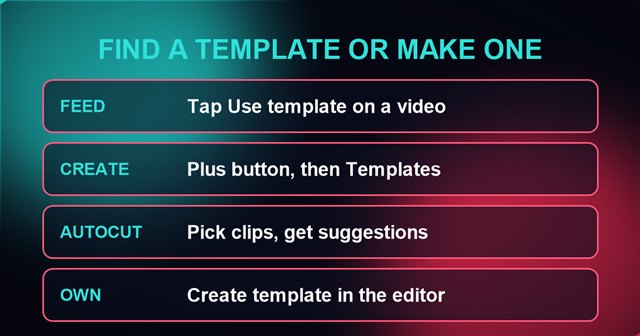
- Three ways to find templates: the “Use template” link on a video in your feed, the Templates option on the creation screen, and AutoCut.
- Making your own: use the Create template option in the template editor. Per TikTok, clips edited in other apps, including CapCut, cannot be used.
- Automatic templates: TikTok says some videos can be turned into templates if they meet requirements, such as 30 seconds or longer with text and over 1,000 views.
- Rollout caveat: TikTok says creating new templates is not yet available to all users.
In this article
What TikTok Templates Are
Creator Academy describes TikTok templates as a way to join trends “in just a few clicks,” or to “inspire a new viral sensation by creating an original template for other creators to use.” In plain terms, a template is a finished edit with slots. You swap your own photos or videos into the slots and keep the timing, transitions and effects.
That makes TikTok templates the lowest-effort way to take part in a format that is already circulating. For how formats spread, see the Lunch in My City trend, which spread as a repeatable format.
How to Use TikTok Templates
Per Creator Academy, there are three ways to explore existing TikTok templates.
1. From your For You feed
If you land on a template you like, tap the “Use template” link above the creator’s username. TikTok says this lets you add your own photos or videos, edit and post in one process.
2. From the creation screen
Tap the plus button on your homepage and select “Templates” on the creation screen. Creator Academy says you will find options for formats including trending, travel, food and more.
3. With AutoCut
If you already know which photos or videos you want to use, select them first, then tap “AutoCut” on the creation screen. TikTok says you will then see a number of suggested templates that match your clips.
How to Make Your Own TikTok Template
Creator Academy gives two routes to creating a template. The first is the editor tool:
- Tap the plus button on your homepage, then select “Templates” on the creation screen.
- Tap “Create template” in the upper right corner.
- Select your photos or videos. Per TikTok, these may not be edited with other editing apps, including CapCut.
- Edit your template however you like.
- Select the clips that other creators will be able to replace when they use your template.
- Save and post. TikTok says your template is then ready for others to use.
When a Video Becomes a Template Automatically
The second route to TikTok templates requires nothing from you. TikTok says that “if they meet certain requirements, some videos may automatically be turned into templates.” To be considered, a video must:
- be a publicly recommended submission,
- be original, meaning no CapCut templates and no style similar to existing content,
- be 30 seconds or longer and include text,
- have over 1,000 video views, and
- have a follow rate greater than 0.005%.
TikTok does not explain how it measures “similar style” or “follow rate” in the article, and it does not say how often videos are converted.
TikTok’s In-App Editing Tools
TikTok templates are one way to edit quickly. The other is TikTok’s own editor. Creator Academy says “everything you need” to create strong effects and transitions exists in the in-app editing features, and that the tools are also in the standalone TikTok Studio app.
How to open the editor
- Tap the plus button in the TikTok app, or open the “Create” section of the standalone app and tap “Create.”
- Upload or record your content.
- Tap “Next.”
- Find your editing tools in the top right-hand corner.
What each tool does
- Edit: rearrange, trim and swap out sections of a video inside TikTok.
- Text: add intro cards, subtitles and other on-screen text.
- Voiceover: narrate a vlog, a recipe or a DIY project.
- Transitions: move between shots, from turning off a TV to smooth scrolling, per Creator Academy.
- Jump cuts: Creator Academy defines these as a shot broken in two by a transition that makes the subject appear to move forward in time abruptly.
TikTok’s own explainer video for the editing tools is below.
@creatoracademy Unlock your creativity with TikTok’s in-app editing tools 🎬✨ How do you get creative? Share your tips below! #creatoracademy
♬ original sound – Creator Academy – TikTok Creator Academy
Credit: @creatoracademy/TikTok.
Effects, Voice Effects and Stickers
Once your cut is set, Creator Academy points to three finishing layers:
- Creative effects: use the effects icon at the bottom of the editing page. The effects are divided into categories including trending, new, visual and transition.
- Voice effects: change the sound of a voiceover, for example for a comedic touch, a calming tone or a motivational push.
- Stickers: add stickers and GIFs and pin them to the video.
Tips From TikTok’s Creator Academy
Creator Academy ends its editing article with three strategy tips. Each is TikTok’s advice, not a guarantee of results:
- Try trends: put your own twist on one.
- Experiment when filming: use different angles and framing to keep an audience engaged.
- Plan ahead: sketch ideas, think about lighting and visualize transitions before recording.
For fancier edits, Creator Academy points to CapCut, which it calls TikTok’s third-party partner. Remember that a clip edited in CapCut cannot be used when creating TikTok templates. If you are stuck for what to make, see the guide to finding trending sounds and the guide to TikTok video ideas tools that show what to post.
Limits to Know
- Template creation is not for everyone yet. TikTok says new templates have not been fully rolled out to all users.
- Eligibility rules can change. The thresholds for automatic templates (30 seconds, 1,000 views, a 0.005% follow rate) are TikTok’s current figures.
- TikTok templates are not a shortcut to views. The Creator Academy articles describe what the tools do, not how a template video will perform.
Frequently Asked Questions
How do I use a TikTok template?
Tap the “Use template” link on a video in your feed, or tap the plus button and choose “Templates,” then add your own photos or videos and post. You can also try AutoCut after selecting clips.
Can I make my own TikTok templates?
Per Creator Academy, yes, through the “Create template” option in the template editor, but TikTok says the feature has not been rolled out to all users yet.
Can I use CapCut clips in TikTok templates?
No. For TikTok templates, TikTok says the photos or videos used to create one may not be edited with other editing apps, including CapCut.
What is AutoCut on TikTok?
It is a creation screen option. After you select photos or videos, AutoCut suggests templates that match them, according to Creator Academy.
Do TikTok templates and editing tools cost anything?
The Creator Academy articles read for this guide do not mention any cost for TikTok templates or the in-app editing tools.
Sources: TikTok Creator Academy articles Staying trendy with TikTok templates and Editing in-app like a pro, read October 7, 2026.