
TikTok Account Security: 7 Steps to Protect Your Account (2026)
Photo: Jason Blackeye, Wikimedia Commons (CC0).
TikTok account security comes down to a short list of settings, and TikTok has published its own guide to them. October is Cybersecurity Awareness Month in the United States, and TikTok’s security posts use the hashtag #BeCyberSmart, so it is a good time to go through the list.
This guide walks through seven steps for TikTok account security, with the exact menu paths TikTok gives. It is based on two TikTok Creator Academy articles, Keeping your account safe and secure and Adding extra account protection with passkeys, read on October 8, 2026. TikTok changes its settings often, so menu names may differ slightly on your device.
The seven steps at a glance:
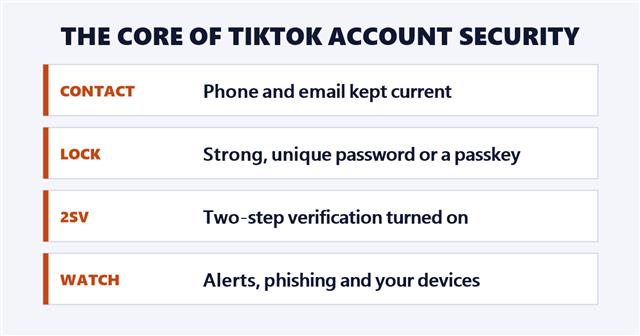
- Keep your phone number and email current.
- Check your security alerts.
- Use a strong, unique password.
- Add a passkey.
- Turn on two-step verification.
- Watch for phishing and fake offers.
- Review your devices and report anything odd.
In this article
1. Keep Your Contact Details Current
TikTok says to “link your current phone number and email address to your TikTok account.” It uses them “to alert you about suspicious activity, and to confirm it’s really you if you ever get locked out.” If either one is out of date, TikTok says both of those functions “break,” so it is worth checking now.
2. Check Your Security Alerts
Security alerts flag unusual activity, “such as password changes or new devices logging into your account,” per TikTok. You can find them in the “Security alerts” tab in your account settings, or by email, SMS or push notification if those are enabled.
TikTok’s advice if an alert shows something you do not recognize, such as a password change you did not make or a login from a device that is not yours: change your password right away, then check your devices and remove any you do not recognize.
3. Use a Strong, Unique Password
TikTok calls a strong password “your first line of defense” and recommends “at least 12 characters with a mix of letters, numbers, and symbols.” Unique matters as much as strong: use a different password for every account, so a breach somewhere else cannot be used to get into TikTok. TikTok also says to set strong passwords or PINs on every device you use for TikTok, and notes that a password manager “can be a real lifesaver.” Good passwords are the base of TikTok account security.
4. Add a Passkey
A passkey is “a passwordless login method stored on your mobile device.” TikTok says your device confirms it is you with your face, fingerprint or passcode, and claims the process is “up to 17x faster” than typing a password. That speed figure is TikTok’s own claim. TikTok adds that a passkey is stored on the device “rather than a server, so there’s nothing for anyone to steal or guess,” and that passkeys help prevent phishing because there is no password to hand over. Passkeys are the newest layer of TikTok account security.
How to set one up
- In the TikTok app, tap Profile at the bottom.
- Tap the menu button at the top.
- Tap Settings and privacy, then Account.
- Tap Passkey, then tap Set up and follow the instructions.
TikTok says the next time you log in, you will be prompted to use your saved passkey. To remove one, delete it in your device settings, or turn it off from your iCloud keychain or Google Password Manager.
Who can use passkeys
Per TikTok, “users worldwide can add a passkey to their device after signing up,” while signing up with a passkey is currently limited to creators on iOS devices in the US. The device requirements it lists:
- Apple: iOS 16, iPadOS 16, macOS Ventura, tvOS 16 or later, with iCloud Keychain turned on and two-factor authentication on for your Apple ID.
- Android: Android 9.0 or later with a screen lock enabled.
5. Turn On Two-Step Verification
TikTok describes two-step verification (2SV) as “like having a double lock on your account.” If someone gets your password, TikTok says 2SV “will stop them in their tracks,” and it also protects the account from unrecognized devices and third-party applications. To set it up, go to your account settings and tap the “Security & permissions” tab. Add 2SV to your TikTok account security checklist. TikTok Tips, TikTok’s official safety account, has a short video on it.
@tiktoktips Behind every secure account is a main character working in the background. 🎭 Two-Step Verification (2SV) is the real MVP—turn it on and keep the drama out. #BeCyberSmart
♬ original sound – TikTok Tips
Credit: @tiktoktips/TikTok.
6. Spot Phishing and Fake Offers
TikTok’s rule is plain: it “will never ask for your password via email.” It lists three things to be extra careful about:
- Third-party sites promising free likes, fans, crowns or coins. TikTok says these “exist to take your login details.”
- Links sent in private messages. TikTok says to check where a link goes before you open it.
- Emails that seem off, especially those that dangle things like a verified badge as bait.
TikTok also says verification is free, so anyone selling a badge is not offering a real one. Here is TikTok Tips on spotting phishing:
@tiktoktips Protect your digital identity and learn how to spot phishing scams trying to steal your information. ‼️🔔 Click the link in our bio to learn more about frauds and scams through our Transparency Hub. #BeCyberSmart #Phishing
♬ original sound – TikTok Tips
Credit: @tiktoktips/TikTok.
7. Review Your Devices and Report Problems
Checking devices is the last step in TikTok account security. Open the “Manage devices” tab in your security settings. TikTok says it shows “every device currently using or recently signed in to your account, how it logged in, and when,” so you can remove any you do not recognize.
To report something suspicious, TikTok gives these steps:
- Open your profile and go to “Settings and privacy.”
- Scroll to “Support & About” and tap “Report a problem.”
- Scroll to the bottom of the page and tap “Report,” then follow the instructions for your issue.
For a suspicious video or message, TikTok says to long press it and tap “Report,” or tap the Share icon and select “Report.”
What TikTok Account Security Guides Do Not Cover
- Recovery: the two articles read for this guide do not walk through recovering a hacked account, beyond changing your password and removing unknown devices.
- Effectiveness: TikTok gives no figures on how often 2SV or passkeys stop account takeovers.
- Settings change: TikTok account security menu names and eligibility, such as the passkey sign-up limits, can change.
This is a summary of TikTok’s own guidance on TikTok account security, not a security audit. If you think your account has been taken over, use TikTok’s in-app reporting steps above and change the passwords of any other accounts that share the same password.
Frequently Asked Questions
What are the best TikTok account security steps?
TikTok account security starts with these steps, per TikTok: keep your contact details current, use a strong, unique password, add a passkey, turn on two-step verification, avoid phishing links and review your devices.
Where do I turn on two-step verification on TikTok?
Go to your account settings and open the “Security & permissions” tab, per TikTok.
What is a TikTok passkey?
A passwordless login stored on your device that uses your face, fingerprint or screen lock. The setup path is Profile, menu, Settings and privacy, Account, Passkey.
Is TikTok account security different for creators with a team?
TikTok says “the more times you share your TikTok login information with your team, the more vulnerable your account becomes,” and suggests passkeys, which can be shared through a password app, as a safer way to give a team access.
Will TikTok ask for my password by email?
No. TikTok says it “will never ask for your password via email.”
How do I see which devices are logged in to my TikTok account?
Open the “Manage devices” tab in your security settings.
Sources: TikTok Creator Academy articles Keeping your account safe and secure and Adding extra account protection with passkeys, read October 8, 2026.